7.4 Integration guide – JCC

Why integrate JCC with RentSyst
By connecting JCC’s payment gateway with RentSyst you gain:
- Live card payments accepted during the booking process (Visa, MasterCard, AMEX etc)
- Secure checkout with 3-D Secure support and PCI-compliant transaction flows
- Seamless flow: bookings in RentSyst → payment via JCC → status updated in RentSyst, reducing manual reconciliation.
- Reduced no-show risk and improved conversion via real-time payment capture.
Step 1: You should have active JCC account
1.1. Please register and verify your JCC account first.
1.2. Account should be active, so you be able to generate payment links and received cars transactaions.
Step 2. Obtain JCC Credentials
2.1. Apply for a merchant account with JCC Payment Systems.
2.2. Login to your account
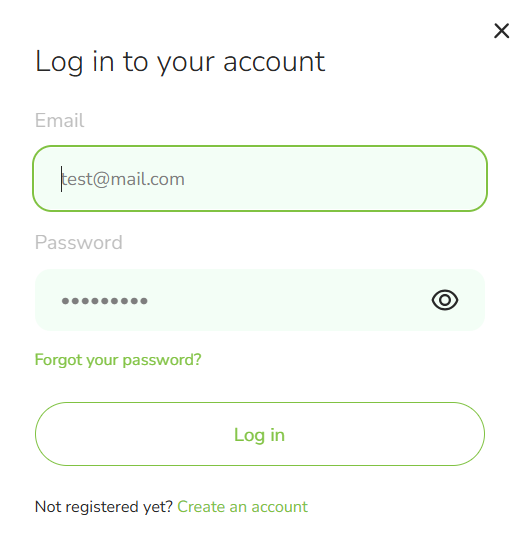
2.3. Get credentials from account (you need to create a new merchant here if you dont have any yet).
Your credentials is API login and API Password. Please copy them and move to step 3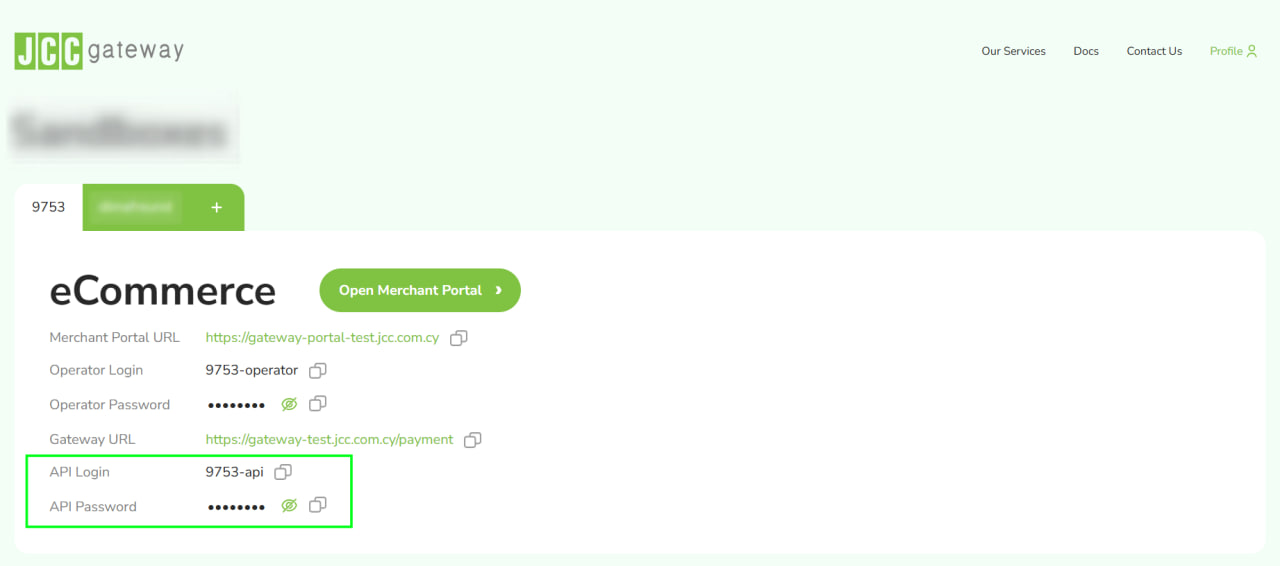
Step 3: Enable JCC payment in RentSyst
3.1. Log into your RentSyst Admin Panel → Settings → Integrations & Agents.
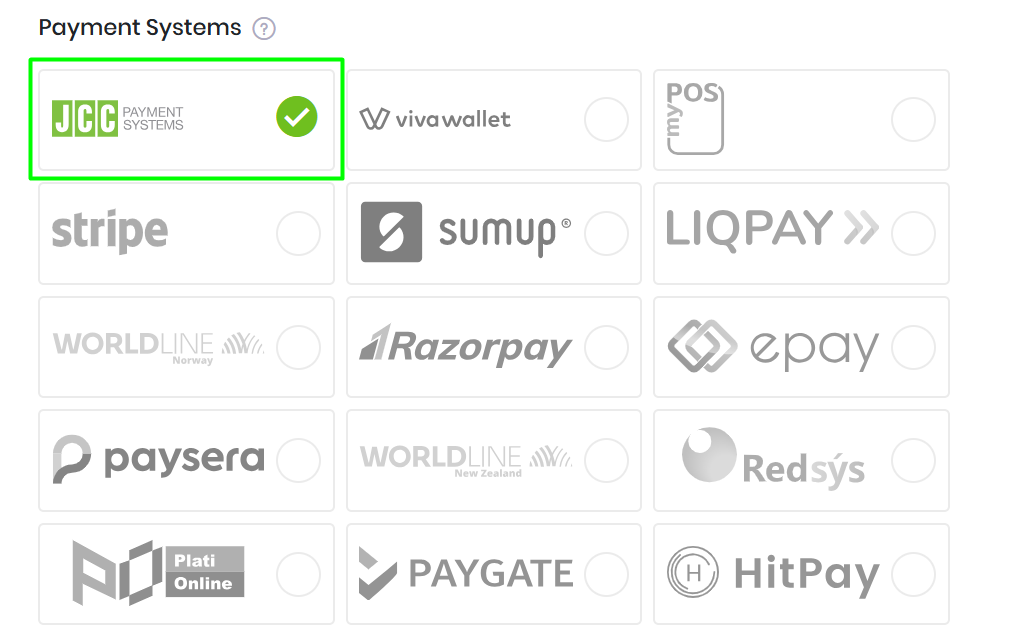
3.2. Select JCC Payment Gateway as your card processor
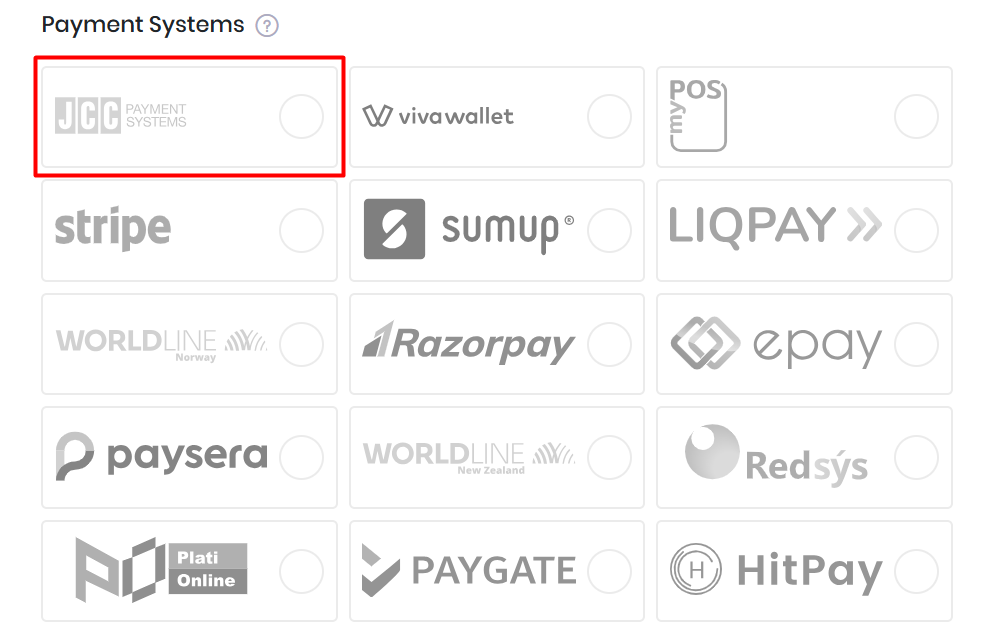
3.3. Enter your credentials: API login and API password. Disable "test mode" and activate "enable".
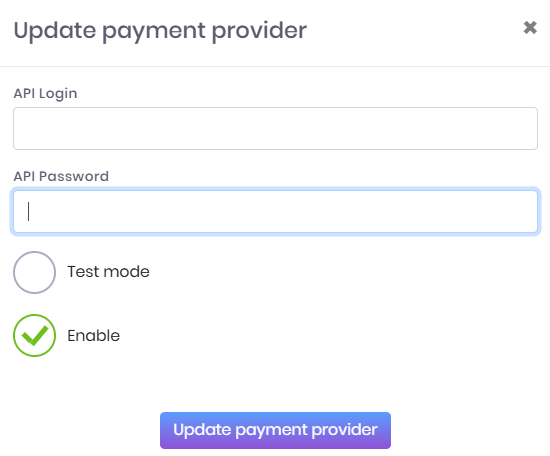
3.4. Once you press "Update payment provider", yo will see JCC icon will be active.
Step 4: Test & Go Live
4.1. Now your payment integration is ready to go live.
We recommend to create a test order and generate payment link to make sure all works smoothly.
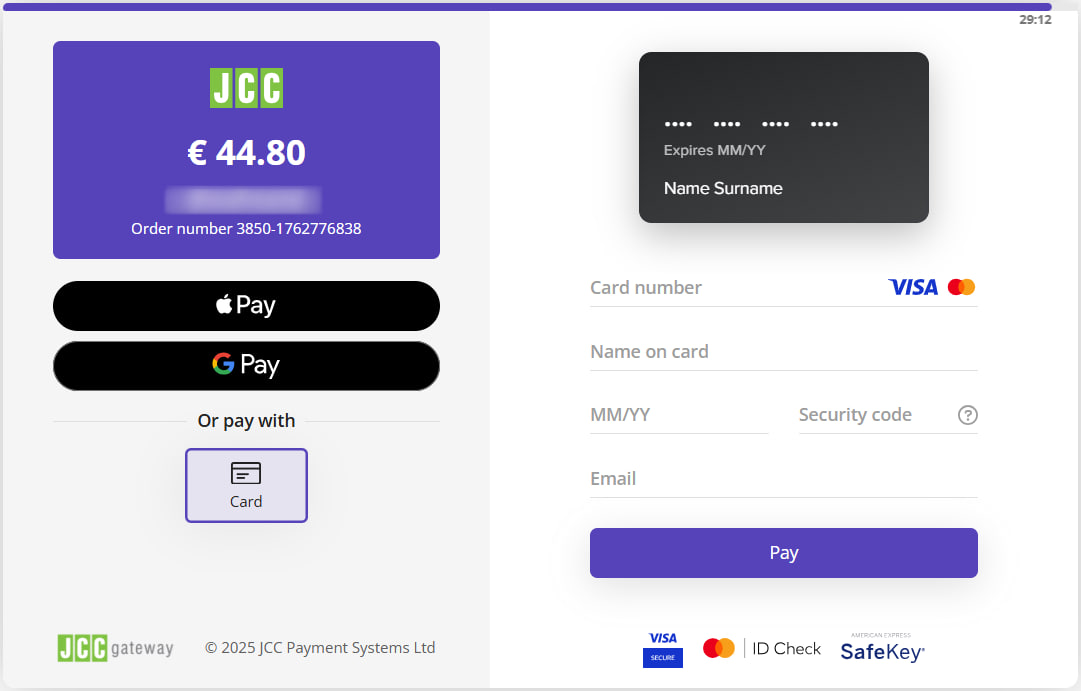
4.2. When payment link generated, here is a sample how it may looks like:
Integrating JCC with RentSyst gives you a robust, secure, and flexible card-payment solution built for car-rental workflows. From smoother bookings and fewer manual tasks, to better customer experience and global card support - this setup lets your rental business operate with modern payment capabilities.
If you have any questions about integration with JCC, please feel free contact RentSyst Support Team.
